How to add a stamp or points
Updated 7 November 2026 · 2 min read · By Diego, founder of Loyaltygo
In short
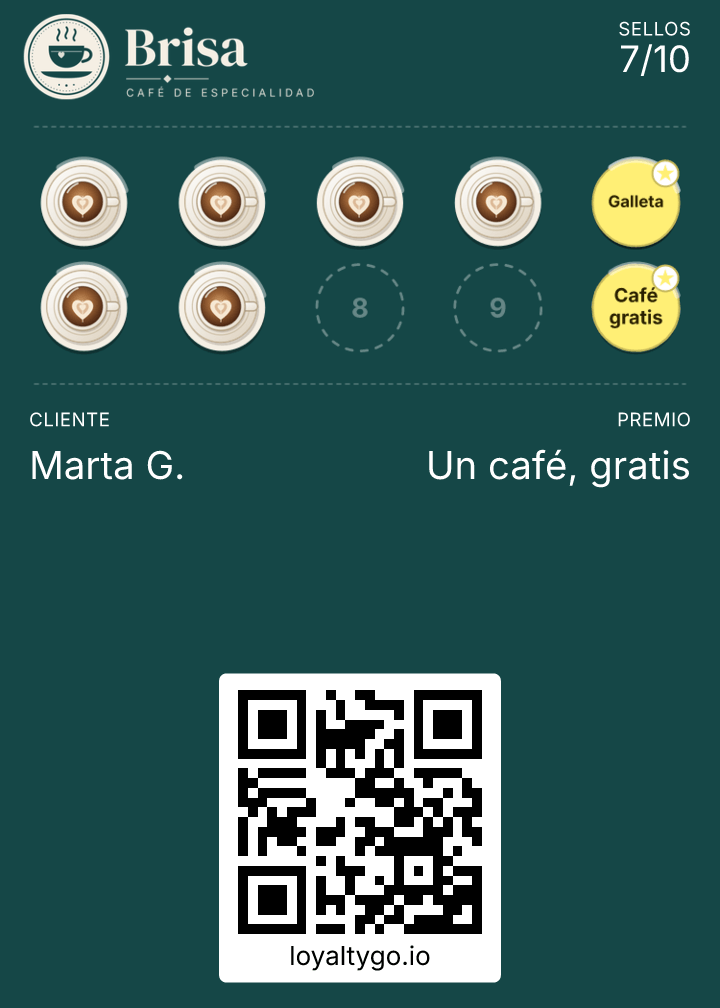
You open the scanner on your phone, scan the card the customer has in their Wallet and tap “Add stamp”. On a points card you type how many (the “Points per scan” number is already filled in) and tap “Add”. If you make a mistake, you can undo it for 2 minutes.
On this page
How do I open the scanner?
- 1In the dashboard, go to “Settings” → “Team access”: the scanner’s QR code is there.
- 2Scan it with your phone’s camera (or your team’s) and the scanner opens. If you follow the steps, you get an icon with your logo on your home screen.
- 3There’s also a short link to read out. Without a PIN, only you can scan, while logged in (how to give your team access).
How does adding work?
- Stamps: one stamp per scan, with “Add stamp”. When the card is full, only “Redeem reward” appears.
- Points: you type the points by hand (the “Points per scan” number appears) and tap “Add”. At most, what the reward costs, in one go.
- If the same customer collected less than 5 minutes ago, the scanner warns you before adding again.
And without scanning?
In the dashboard’s customer list, each customer has “Add”, to add a stamp by hand, and in their menu “View history”, “Fix email”, “Download their data” and “Delete customer”.
Frequently asked questions
Does the customer get a notification with every stamp?
Not with stamps. They get a notification when their reward is ready. On points cards you can turn on “Notify the customer every time they earn points”.
How is the reward given?
With “Redeem reward” in the scanner. It’s in how the reward is redeemed.