How your customers add the card to Apple Wallet or Google Wallet
Updated 7 November 2026 · 2 min read · By Diego, founder of Loyaltygo
In short
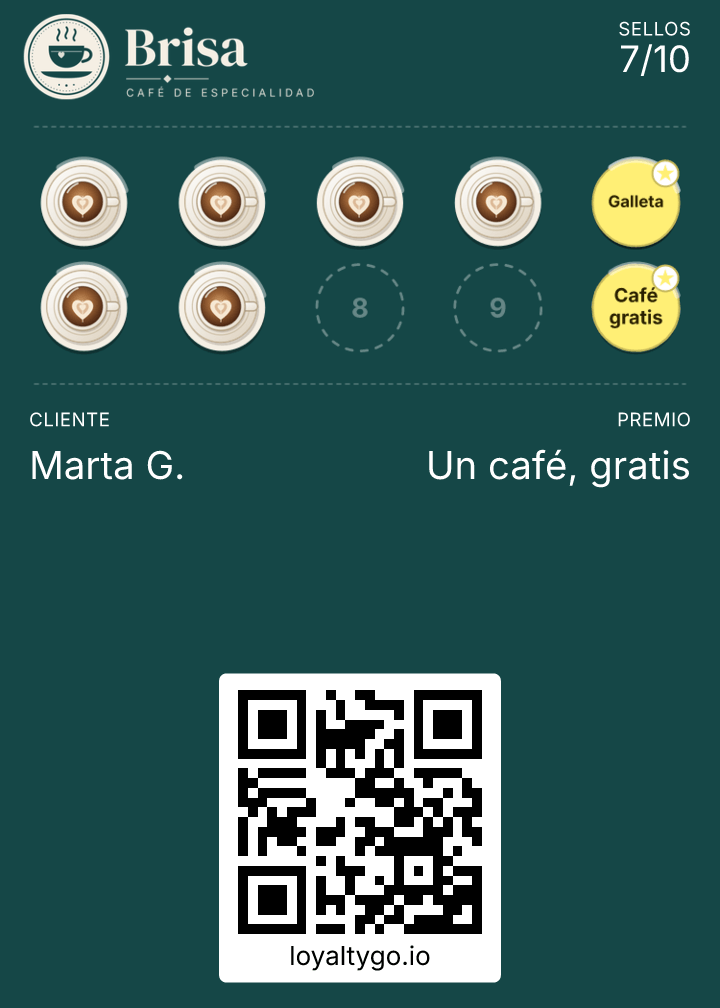
The customer scans your QR code with their phone’s camera, enters their name and email and taps “Get my card”. Then they tap “Add to Apple Wallet” on iPhone or “Add to Google Wallet” on Android. They don’t download any app or create a password.
On this page
What steps does the customer take?
- 1They scan the QR code on your poster with their phone’s camera.
- 2They enter their name and email. Phone number and birthday (day and month only) are optional.
- 3If they want, they tick the box to receive your offers by email. It comes unticked.
- 4They tap “Get my card” and then their Wallet’s button: on iPhone it says “Add to Apple Wallet”; on Android, “Add to Google Wallet”.
What if something doesn’t work?
- If they opened the link inside Instagram or WhatsApp, the page asks them to open it in Safari or Chrome.
- If that email already has your card, no new one is created: they get an email with the link to the one they already have.
Frequently asked questions
Does the customer have to download an app?
No. The card goes in the Wallet that already comes with their phone.
What is the birthday for?
To wish them a happy birthday if you turn on the birthday greeting. It’s in the automatic notifications.