How to download the poster with your QR code for the counter
Updated 7 November 2026 · 2 min read · By Diego, founder of Loyaltygo
In short
In the dashboard, in the “Poster” section, you choose the poster’s headline, subheading, colors and format and download it as a PDF or PNG. The QR code takes your customers to the page where they add the card. You also have the form link and a code to put it on your website.
What formats are there?
- A4 sheet.
- A5 counter sign, for an acrylic frame.
- Letter sheet (US Letter size).
- Table card (A6 landscape).
- Digital square, for social media.
How do I make it?
- 1In the dashboard, open the “Poster” section.
- 2Write the headline and the subheading, and choose the “Background color”, the “Text color” and the “Format”.
- 3Tap “Download PDF/PNG”. With “Save”, it’s kept for next time.
And without a poster?
In “Settings” → “General” you have the QR code, the “Form link” to send by WhatsApp or put on your Instagram, and a code for your website. If you have several locations, each one has its own QR code and poster (several locations).
Frequently asked questions
What does the customer see when they scan it?
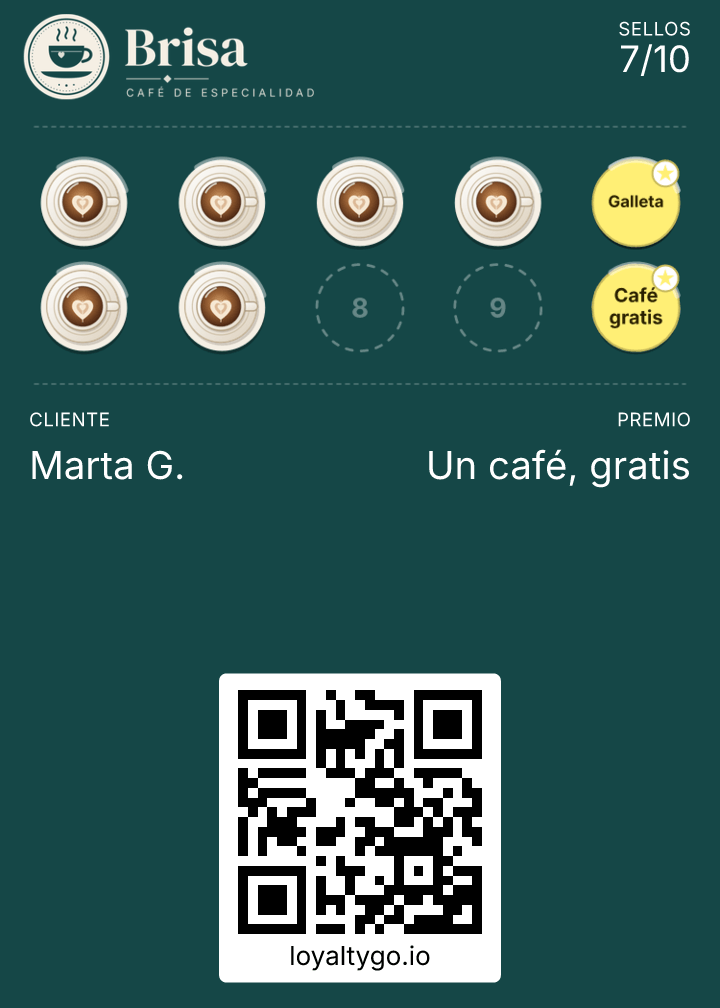
Your card’s page, where they enter their name and email and add it to their Wallet. It’s step by step in how your customers add the card.